


7 Quick Fixes To Fix SLOW Home Wi-Fi
October 21, 2023

October 21, 2023

Nothing is more aggravating than attempting to watch a video or use your PC when the Internet is operating slower than molasses flowing uphill in winter. 

We have many solutions for our clients to make your Internet connection faster, more reliable, and secure. But what about at your home? Spotty, unreliable Wi-Fi is almost certain to happen at the most inconvenient time, like when you’re about to watch a great movie on a Friday night.
Here are our top 7 fixes for slow home WiFi signals.
Step 1: Ensure your Internet Service Provider (ISP) isn’t having issues. Most ISPs will have outages published on their website using your phone’s mobile network instead of your home Wi-Fi. You can move on to the next steps if there are no outages or known problems. Side Note: If you haven’t talked to your ISP in over a year, you should call and see if they have new plans to give you more bandwidth for less money. You might also shop other providers to see if they have recently upgraded their network and can offer better, faster service than your current ISP.
Step 2: Update your router, especially if you haven’t done so in the last 2 to 3 months. This will reset your router with the latest (and fastest) connection speeds and ensure you’re up-to-date with security patches and other preventative programs. You might reboot it as well, powering it off and on again. Sometimes, that’s enough to fix the problem. I would also suggest you get a new router if yours is over three years old. Aim for one with Wi-Fi 6 and dual or triple band capabilities, allowing your router to connect with multiple devices without sacrificing speed or bandwidth.
Step 3: Change the channel. Download the app Network Analyzer to help find the most appropriate channel for your connection. If you use the 2.4 GHz frequency, change to another less “noisy” channel. How you do this depends on the brand and model of your router, so refer to your router’s manufacturer for details.
Step 4: Upgrade to a mesh Wi-Fi router. When too many devices connect, Internet speeds decline. One option is to get a mesh router like Google Mesh routers, NETGEAR’s Nighthawk Mesh, or EERO Mesh from Amazon. Unlike a traditional router, which broadcasts its signal from a single device, a mesh router emits a signal from multiple units strategically placed around your home. Upgrading to a single, more expensive router like a Nighthawk could help in smaller homes.
Step 5: Turn on QoS or Quality of Service. This router feature lets you prioritize traffic and apps, such as Zoom or gaming programs. Essentially, your router will prioritize specific uses over others. Of course, how this is done varies by router, so you’ll have to check your router’s manual for details.
Step 6: Check that you haven’t been compromised. If your Wi-Fi network is open without security or uses WEP, WPA, or WPA2, change your settings immediately. Go with WPA3 encryption (which is the most secure) and disable any remote management options on your router. Viruses and hacks can suck up resources and may be the reason for your network grinding to a halt.
Step 7: Change your router’s location. The basement might not be the best place to store your router. Try placing it up high and as close to the center of your home as possible, free from obstructions and appliances, mirrors, concrete walls, and metal materials that can cause signals to bounce or be blocked. If you put your router on your house's wall, your signal only impacts half of your home. If you have a prominent place, you will probably need to invest in home Wi-Fi extenders to boost the signal.
If your business Wi-Fi is slow, spotty, and problematic, call us to request a free diagnostic of your office Internet connection to see what’s causing the problems you’re experiencing. Obviously, business Wi-Fi is more important than home Wi-Fi and can cost you untold frustration and low productivity if not fixed. Contact us today!

Text on dark blue background: “October is Cybersecurity Awareness Month. Be Safe.”
October 1, 2025
This October marks the Cybersecurity Awareness Month. What began as a modest campahas evolved into is a global initiative led by the CISA and the NCA. We’re proud to join this effort.
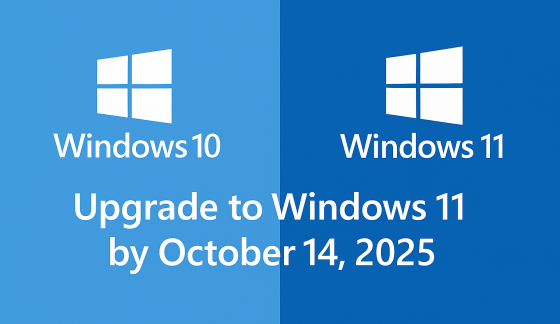
Windows 10 and Windows 11 logos with text:
September 24, 2025
Windows 10 support ends Oct 14, 2025. Learn how Microsoft’s Extended Security Updates (ESU) can keep your PC protected until 2026.
Password Day graphic with a padlock, password field, magnifying glass, and blue security shield
May 1, 2025
As we stand on the cusp of 2025, the technological landscape is evolving at an unprecedented pace, bringing both challenges and opportunities for businesses of all sizes. The coming year promises to be a pivotal one, with several key technology milestones set to reshape how we work, communicate, and conduct business. From the end of support for a widely-used operating system to the emergence of cutting-edge AI applications, these changes will impact everyone from small business owners to large corporations and individual users alike.

Show More →